

SCIM with Entra ID
This page covers configuring Microsoft Entra ID as your SCIM client to provision users and groups into LocalStack. Before starting, make sure you’ve completed the steps in the SCIM overview to enable SCIM and obtain the SCIM Base Connector URL and Bearer Auth Token from the LocalStack web app.
Configuring SCIM with Microsoft Entra ID
Section titled “Configuring SCIM with Microsoft Entra ID”Use the following steps to configure SCIM provisioning from a Microsoft Entra ID Enterprise Application.
-
Select or create your Enterprise Application — In the Microsoft Entra admin center, go to Identity → Applications → Enterprise applications and select the application you want to enable SCIM provisioning for. If you don’t have one yet, create a new non-gallery application.
-
Navigate to Provisioning — In the application’s side menu, open Manage → Provisioning. On first setup, click Get started and set the Provisioning Mode to Automatic.
-
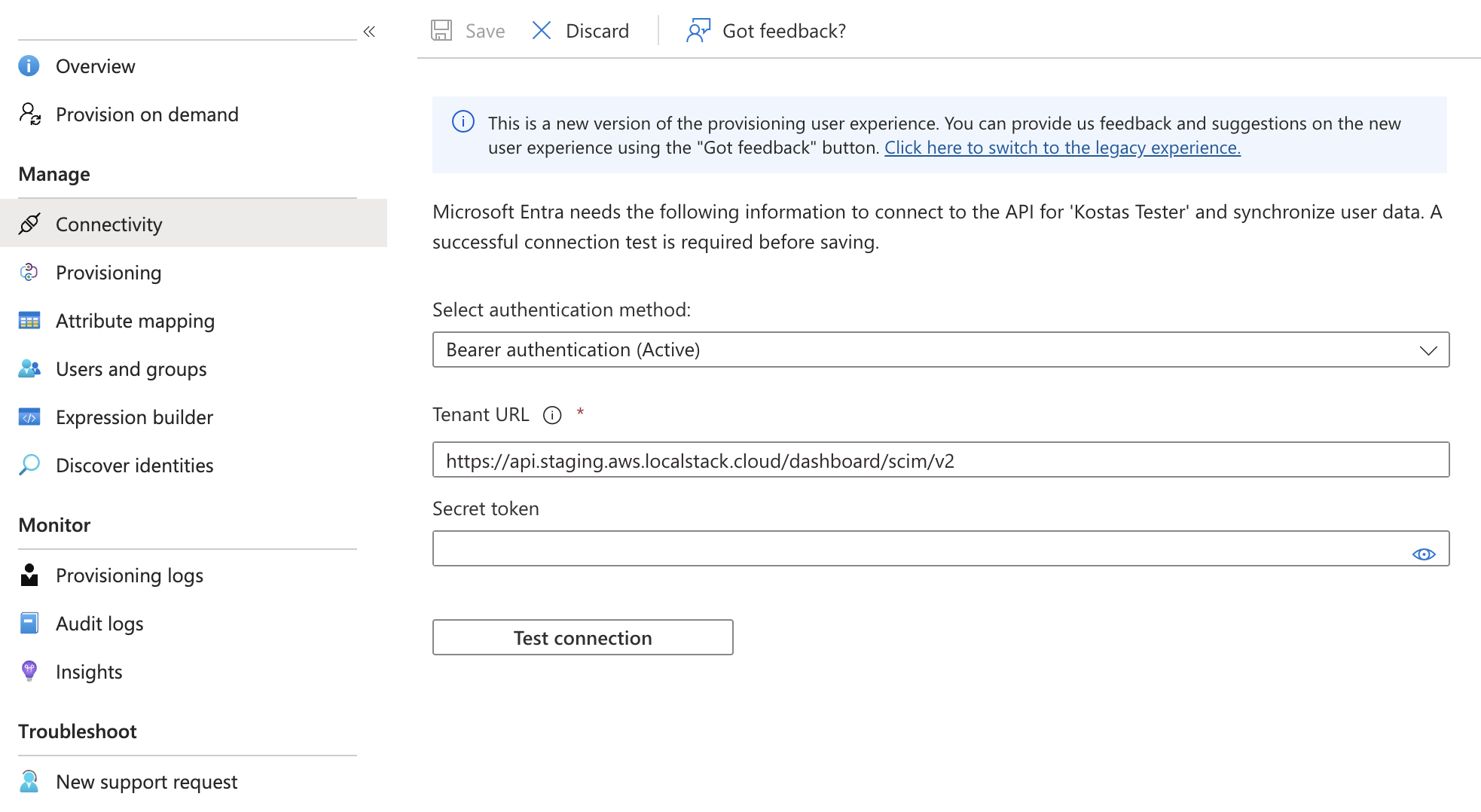
Enter the SCIM connection details under the Connectivity section (or Admin Credentials in the legacy view):
- Authentication method: Select Bearer authentication.
- Tenant URL: Paste the SCIM Base Connector URL from the LocalStack SCIM configuration panel.
- Secret Token: Paste the SCIM bearer token from the LocalStack SCIM configuration panel.
-
Test the connection and save — Click Test connection to confirm Entra can reach LocalStack, then save the settings.
-
(Recommended) Set scope — Under Provisioning → Settings → Scope, select Sync only assigned users and groups to limit provisioning to users and groups you explicitly assign to the application.
-
Start provisioning — Return to the Provisioning overview and click Start provisioning. Entra will sync user and group changes to LocalStack every ~40 minutes; for an immediate sync of a specific user, use Provision on Demand from the Provisioning blade.
User Management
Section titled “User Management”Provisioning Individual Users
Section titled “Provisioning Individual Users”LocalStack supports full provisioning and deprovisioning of individual user accounts via SCIM.
-
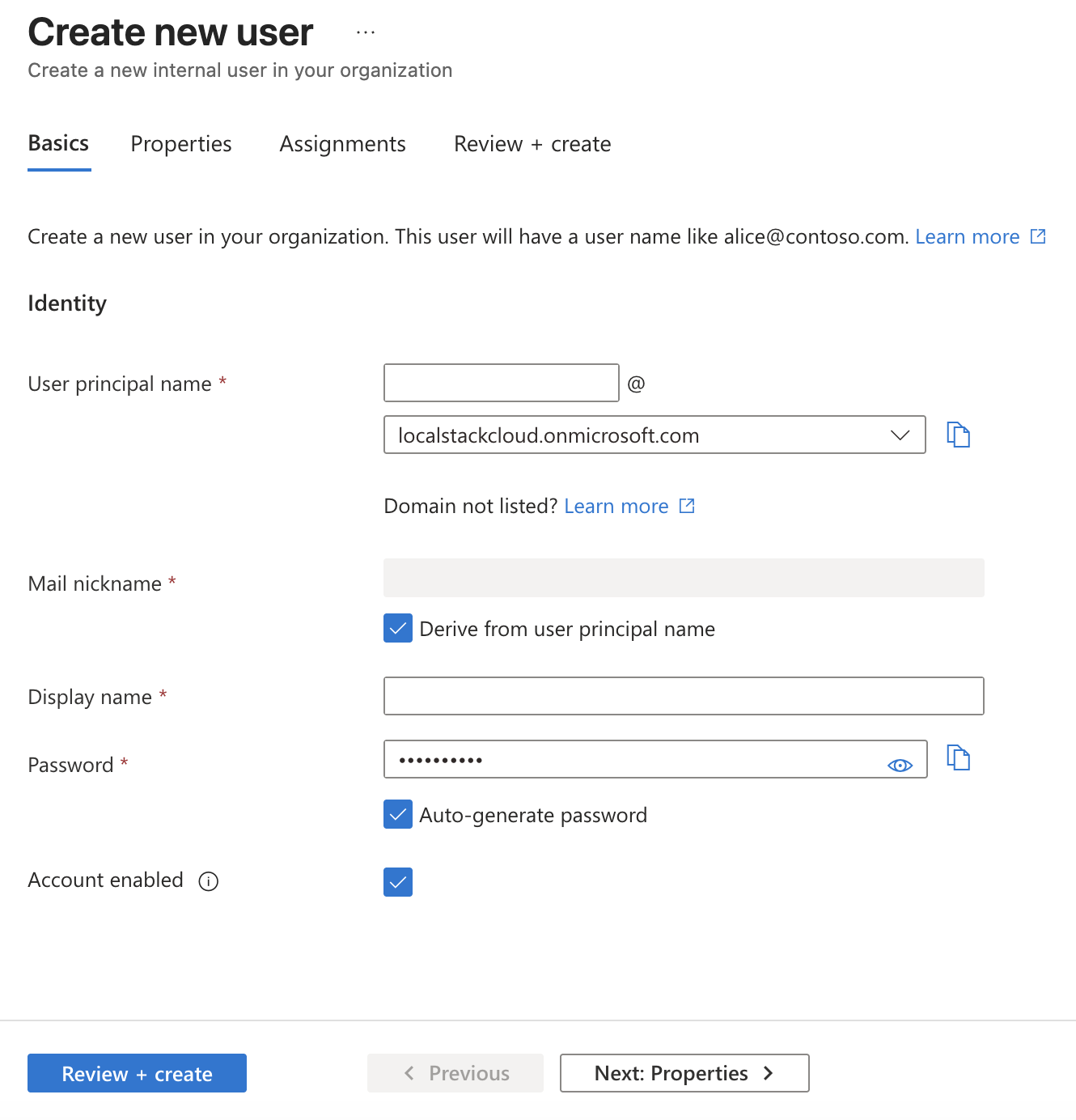
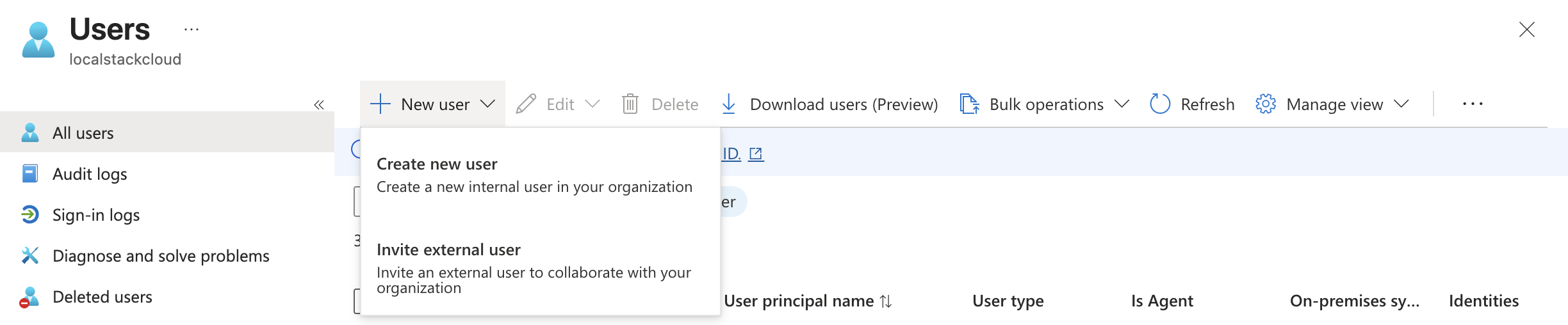
Create the user in Entra (if not already present) — In Microsoft Entra ID → Users, click + New user → Create new user and fill in the basic details (User principal name, Display name, etc).
-
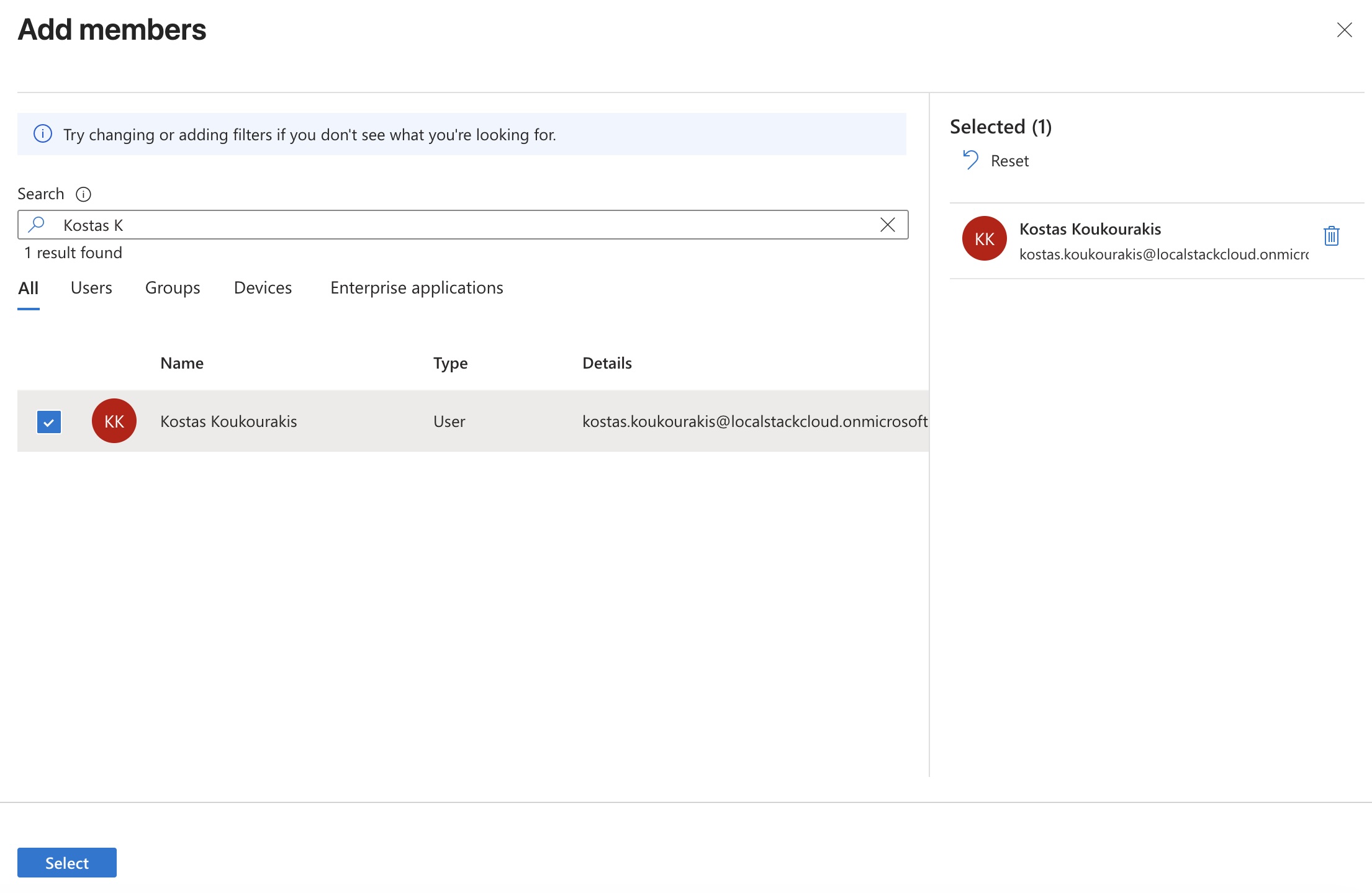
Assign the user to the LocalStack application — Open your Enterprise Application and go to Manage → Users and groups. Click + Add user/group, search for the user, select them, and click Select.
-
Wait for sync — On the next provisioning cycle (or via Provision on Demand), Entra will send a SCIM request to LocalStack to create the user account.
Updating User Accounts
Section titled “Updating User Accounts”Changes to user attributes (first name, last name, email) in Entra are automatically pushed to LocalStack via SCIM while the integration is active.
Deprovisioning Users
Section titled “Deprovisioning Users”- In Entra, open the LocalStack Enterprise Application and go to Manage → Users and groups.
- Find the user you want to remove and click Remove.
- Confirm the action.
Entra will send a SCIM deprovisioning request and the user will be removed from LocalStack on the next sync cycle. Disabling the user in the Entra directory itself (accountEnabled = false) has the same effect.
Provisioning Groups of Users
Section titled “Provisioning Groups of Users”Groups in Microsoft Entra ID can be used to provision multiple users to LocalStack at once. To enable group provisioning, ensure the Provision Microsoft Entra ID Groups mapping is enabled in Provisioning → Mappings.
Assigning a Group
Section titled “Assigning a Group”- Create a security group — In Microsoft Entra ID → Groups → All groups, click + New group. Choose Security as the group type, set the Membership type to Assigned, give the group a name, and (optionally) a description.
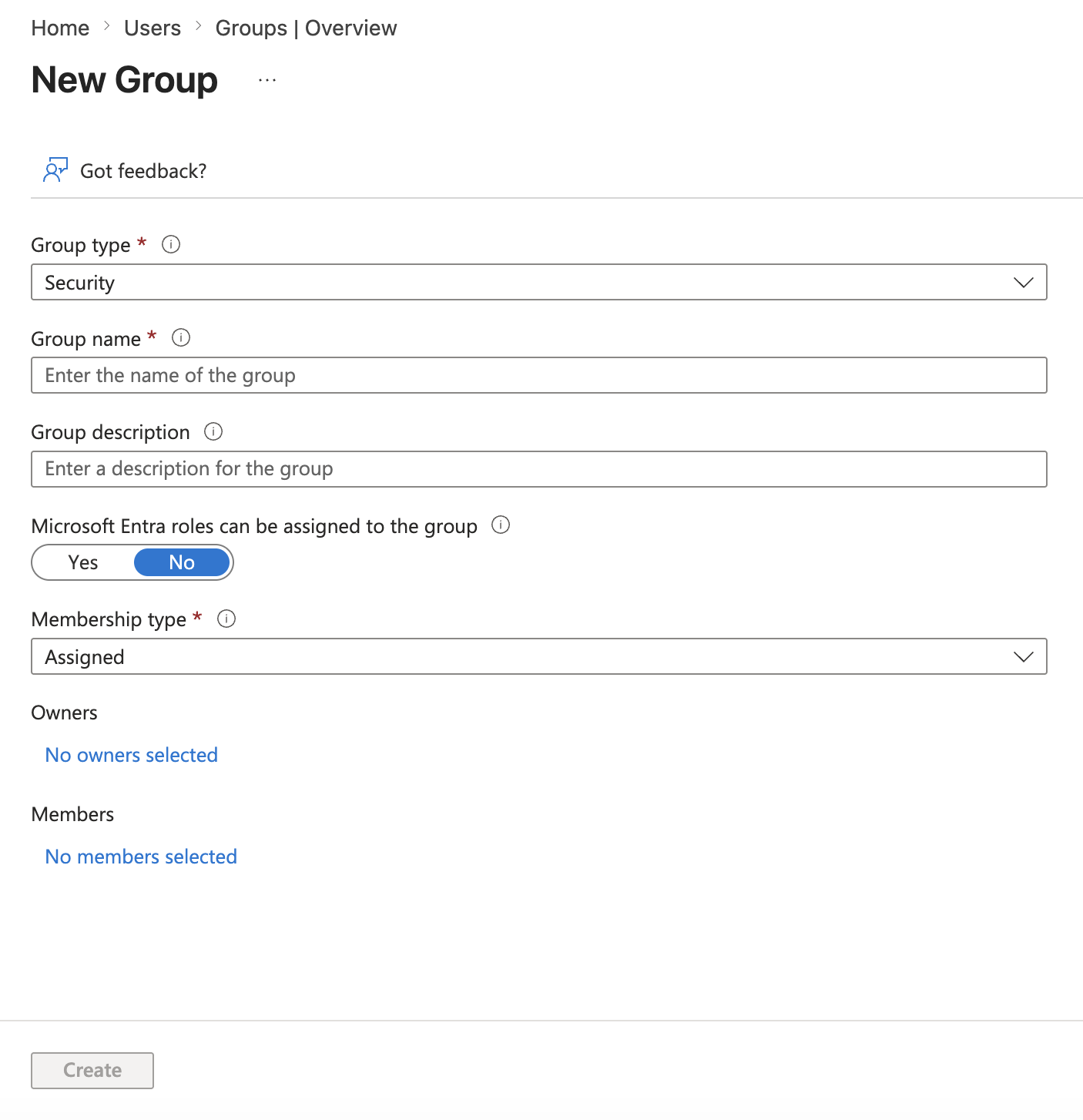
- Add members to the group — In the same form (or after creation, via the group’s Members tab), select the users you want to provision.
- Assign the group to the application — Open your Enterprise Application, go to Manage → Users and groups, click + Add user/group, select the group, and confirm.
- Wait for sync — Entra will send SCIM requests to LocalStack to provision each member on the next sync cycle.
Changes to a group’s membership in Entra are automatically pushed to LocalStack via SCIM on subsequent sync cycles.
Deprovisioning a Group
Section titled “Deprovisioning a Group”- In Entra, open the LocalStack Enterprise Application and go to Manage → Users and groups.
- Find the group and click Remove.
- Confirm the action.
Entra will send SCIM requests to remove the group’s users from LocalStack. Users who were provisioned solely through this group assignment will also be deprovisioned.
Role Management
Section titled “Role Management”LocalStack workspace roles (admin and member) are assigned to users by syncing SCIM groups whose name identifies the target role. The role groups themselves do not need to exist in LocalStack before the sync — they are synthetic SCIM groups keyed off the displayName.
Group Name Convention
Section titled “Group Name Convention”Role groups are matched by displayName using a case-insensitive substring check:
- Any group whose name contains
admin→ admin role group - Any group whose name contains
member→ member role group
All of the following are valid names for the admin role group:
LocalStack-AdminLocalStack-Admins-ProdXD5-XD5-LA1000_AuthLocalstackAdmin
The first time you sync a role group from Entra, LocalStack persists that displayName so subsequent GET responses to your IdP reflect the name you sent. You can also rename the group later via SCIM and LocalStack will track the rename.
Creating a Role Group in Microsoft Entra ID
Section titled “Creating a Role Group in Microsoft Entra ID”- In Microsoft Entra ID → Groups → All groups, click + New group. Create a Security group with Membership type: Assigned whose name contains either
Admin(for the admin role) orMember(for the member role).
- Add users to the group (users must already be assigned to the LocalStack Enterprise Application).
- Assign the group to the LocalStack Enterprise Application via Manage → Users and groups.
- Confirm that Provision Microsoft Entra ID Groups is enabled under Provisioning → Mappings.
- On the next provisioning cycle (or via Provision on Demand), Entra will sync the group to LocalStack and assign the corresponding role to all members.
Moving a User Between Roles
Section titled “Moving a User Between Roles”To change a user’s role from member to admin (or vice versa):
- Remove the user from their current role group in Entra.
- Add them to the target role group.
Perform these operations as a single atomic action where possible. Adding a user to the new role group while they are still in the old one will return a 409 conflict.
Last-Admin Protection
Section titled “Last-Admin Protection”LocalStack will reject any SCIM request that would leave the workspace without an admin. If you attempt to remove the only admin from the admin role group, the request fails with 409 Cannot remove the last workspace admin. Assign another admin in LocalStack first, then retry the removal.